Tapkey now supports NFC on iPhone
Tapkey now supports NFC (Near-field communication) on iPhones running iOS 17.4 or later. This feature allows your iPhone to emulate a transponder and unlock Tapkey Smart Locks without needing to manually select a lock in the app.
NFC enables a fast, secure, and contactless way to use your phone as a key. Simply hold your device near the lock, and it will open. Ideal for situations where multiple locks are in close proximity.
Note: This feature is currently available for users located in the European Economic Area (EEA).
Requirements:
- iOS 17.4.0 or later.
- Tapkey app supports NFC in iPhones from the Tapkey app version 2.51.19.
- Apple Store accounts must be in the European Economic Area.
Lock Firmware requirements
- The feature that requires the minimum version in the Locks Firmware to be able to work.
- Firmware version 4.3.10015 is required for:
- DOM Tapkey Smart Lock cylinder
- DOM Tapkey GUARD
- DOM Tapkey LoQ
- DOM Tapkey ACM (HiSec / Compact)
- Tapkey Half Cylinder
- Firmware version 1.1.10016 is required for:
- DOM Tapkey AccessManager Updater (HiSec / Compact)
More information about how to conduct firmware updates.
When to use HCE
NFC is especially useful when:
- You don’t want to manually select a lock in the app.
- You’re using multiple Tapkey locks within close range.
With NFC, your iPhone will automatically activate the correct lock just by holding it close. It’s efficient, intuitive, and removes any guesswork.
How to use
In general, the behavior to open the lock is:
- Enter NFC Mode. In this case, your phone is going to enter in a mode where it is reading Locks Nearby.
- Hold your iPhone near the lock. If you have a valid key, the lock will open automatically.
Activate NFC-Unlock from the keyring screen when opening the Tapkey App. Activating the NFC-Unlock can be done in multiple ways:
- From Tapkey Widget
- From iPhone’s Lock Screen
- From Tapkey App
- From Default Contactless App
1. From the Tapkey Widget
If you’re using the Tapkey Widget on your iPhone, you can customise it to include the “NFC Unlock” option for quicker access. More info about the Tapkey Widget.
.gif)
2. From iPhone´s Lock Screen
To make unlocking even faster, you can add Tapkey as a Quick Action directly to your iPhone’s Lock Screen. Here’s how to set it up:
- Go to your Lock Screen.
- Tap and hold in the empty space in your lock screen until the customisation view appears.
- At the bottom, tap the minus (-) icon to remove an existing Quick Action, then tap the plus button (+) to open the gallery.
- Search for “Tapkey” in the list and select it to add it to your Lock Screen.
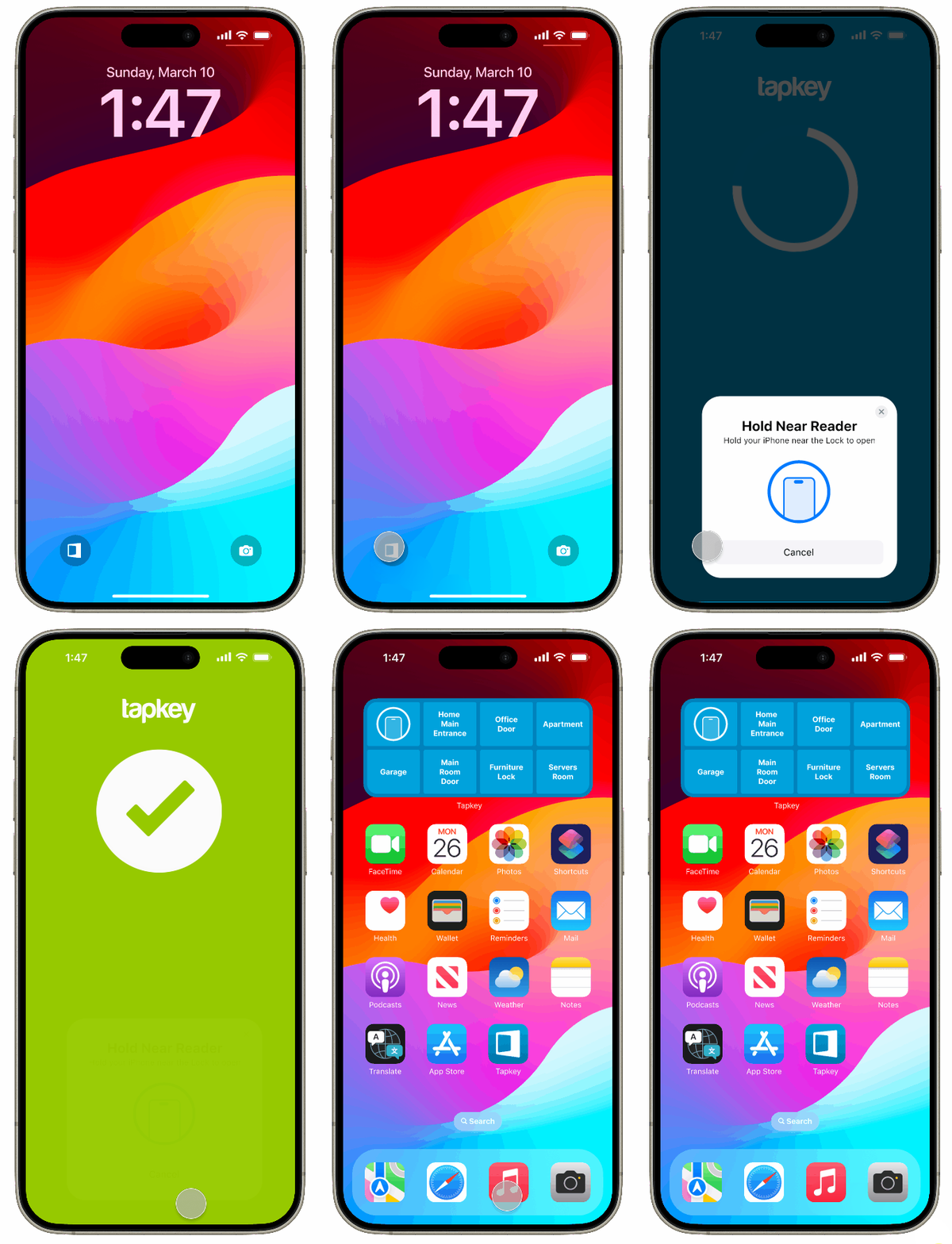
Now you can unlock Tapkey devices from Lock Screen!
3. From Tapkey App
The Tapkey Keyring app now includes a new “ACTIVATE NFC UNLOCK” button. When activated, your iPhone enters a mode that lets you unlock a Tapkey device by simply holding it near the lock.
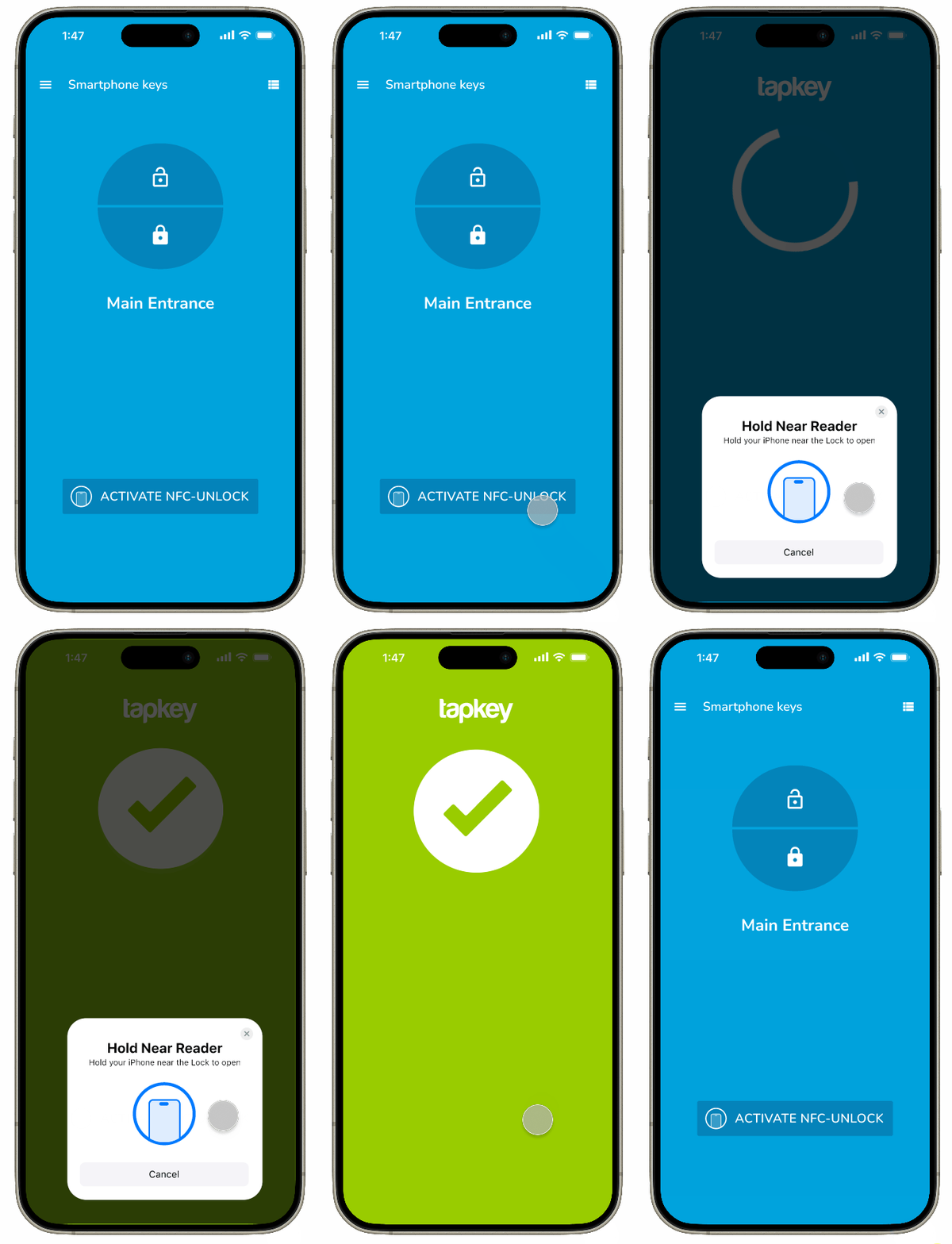
4. Configuring the Tapkey as Default Contactless App
You can configure Tapkey as your default contactless application. This allows you to Open locks by tapping with your phone, it only requires your phone to be unlocked.
Note: By following this guide, your phone will set Tapkey as the default app instead of Wallet. As a result, you will need to open the Wallet app manually whenever you want to make payments.
- Go to Settings, then tap Apps.
- Tap Default Apps at the top of the list of your apps.
- Tap the feature Contactless App to change your default Wallet app to use Tapkey.
- Select Tapkey as your default Contactless App.
Congratulations, you can now open your Tapkey Locks just by presenting your phone!
Was this article helpful?
That’s Great!
Thank you for your feedback
Sorry! We couldn't be helpful
Thank you for your feedback
Feedback sent
We appreciate your effort and will try to fix the article