Using Persons in Tapkey
The Persons feature allows you to manage access centrally by linking access rights to an individual.
A person can receive access via email (smartphone access) and can also have NFC transponders assigned at the same time. This ensures consistent access management across different unlocking methods.
Important: NFC Transponder Grant Capacity
Tapkey NFC transponders can store a limited number of grants.
Each Tapkey transponder supports a maximum of 12 grants.
If a person is assigned more than 12 grants, the system will notify you that the transponder cannot store additional grants. In this case, access rights must be reviewed and reduced.
To avoid this situation:
- Use lock groups instead of individual lock grants
- Structure grants efficiently
- Review unnecessary or outdated grants regularly
What Are Persons?
A Person represents an individual in your locking system.
Each person can have:
- Smartphone access via email
- One or two NFC transponders
- Access rights assigned directly or via person groups
Managing access on a person level simplifies administration. Instead of assigning grants separately to smartphones and transponders, access is structured around the individual.
This approach keeps your locking system organised and scalable.
When to Use Persons
Use Persons when:
- One individual uses multiple access media
- Access needs to be managed centrally
- Permissions should remain consistent across smartphone and NFC credentials
If a user receives a new transponder, you only assign it to the existing person. No need to recreate access rules.
Step-by-step
In the left-hand navigation menu, select Persons.
Create and manage your persons from the Persons page.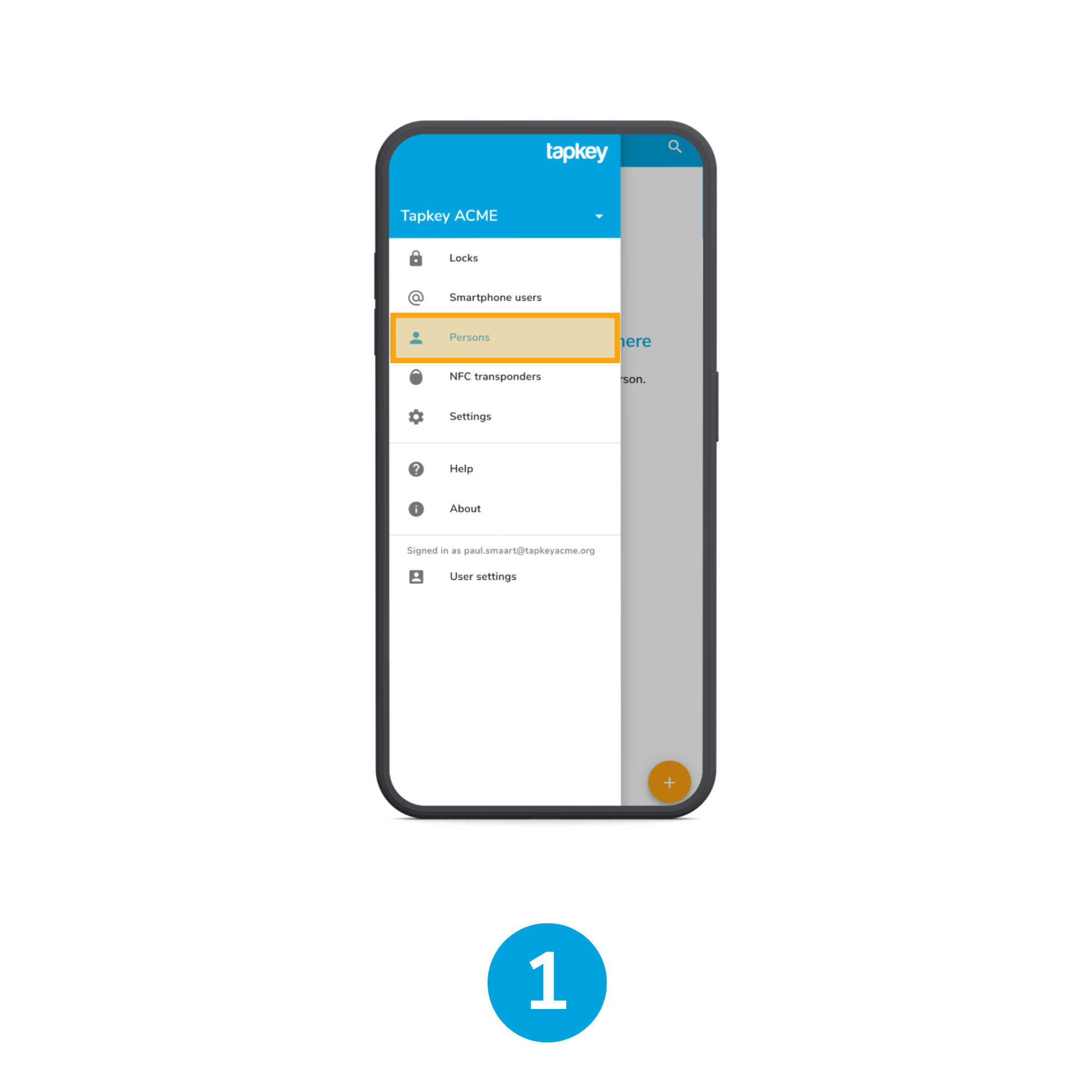 On the Persons page, you will see a list of all existing persons.
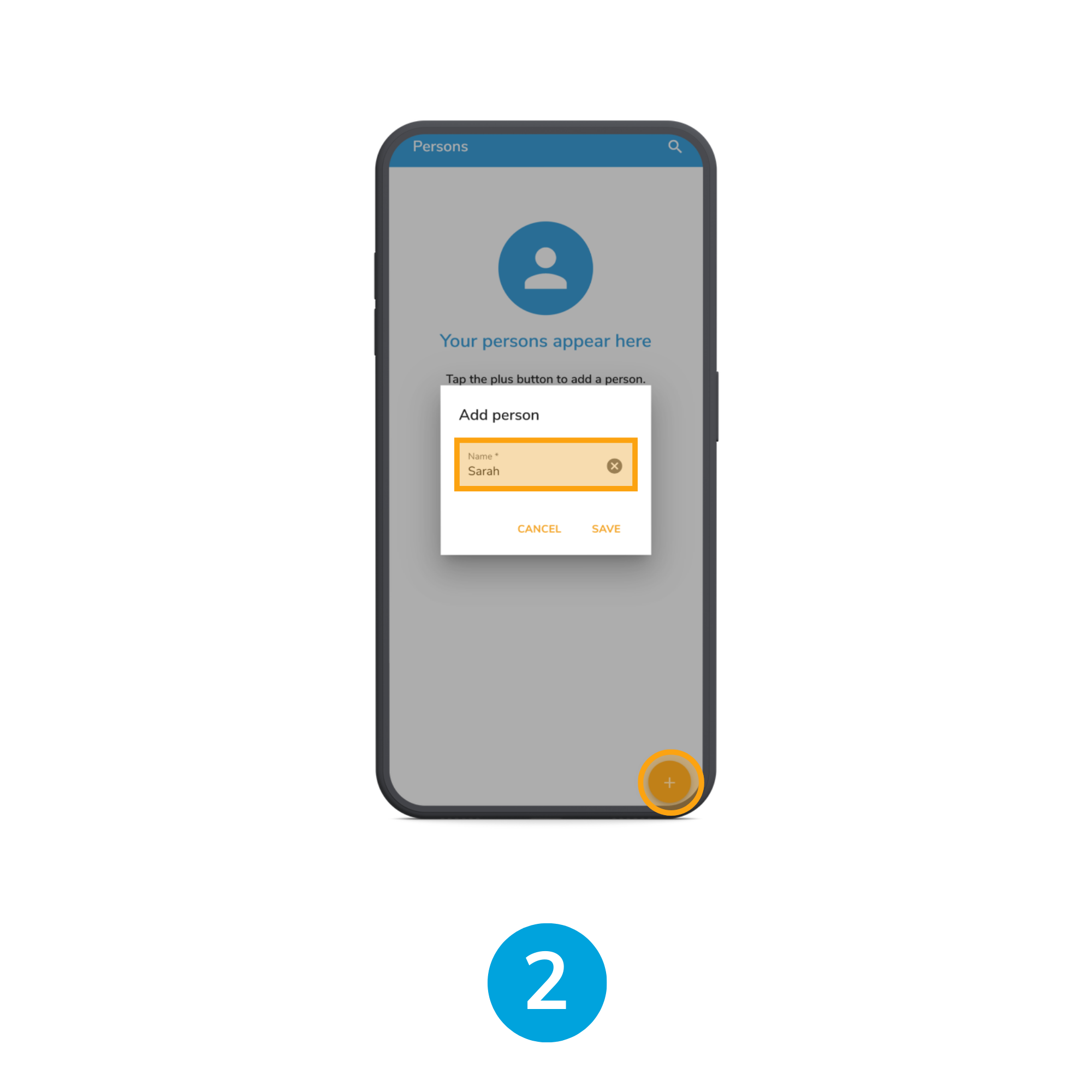
To create a new person:
- Click Add (+).
- Enter a name for the person.
- Click Save.
The new person is now created and can be assigned access rights and credentials.
Once the person has been created, you can assign access credentials.
Each person can have:
- One email address for smartphone access via the Tapkey app
- Up to two NFC transponders
This allows you to manage access centrally while supporting different unlocking methods.
 Assign an Email Address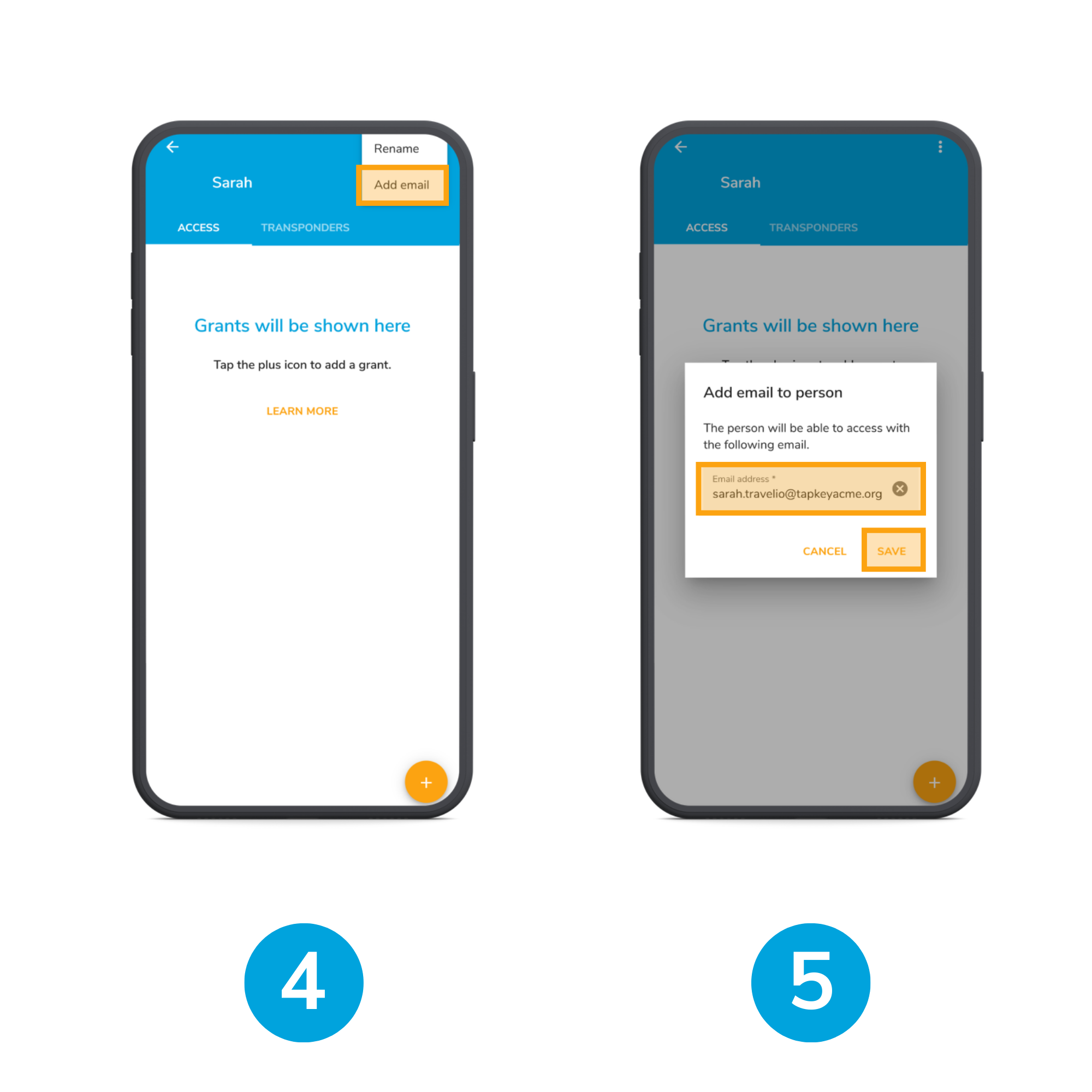
To enable smartphone access for a person:
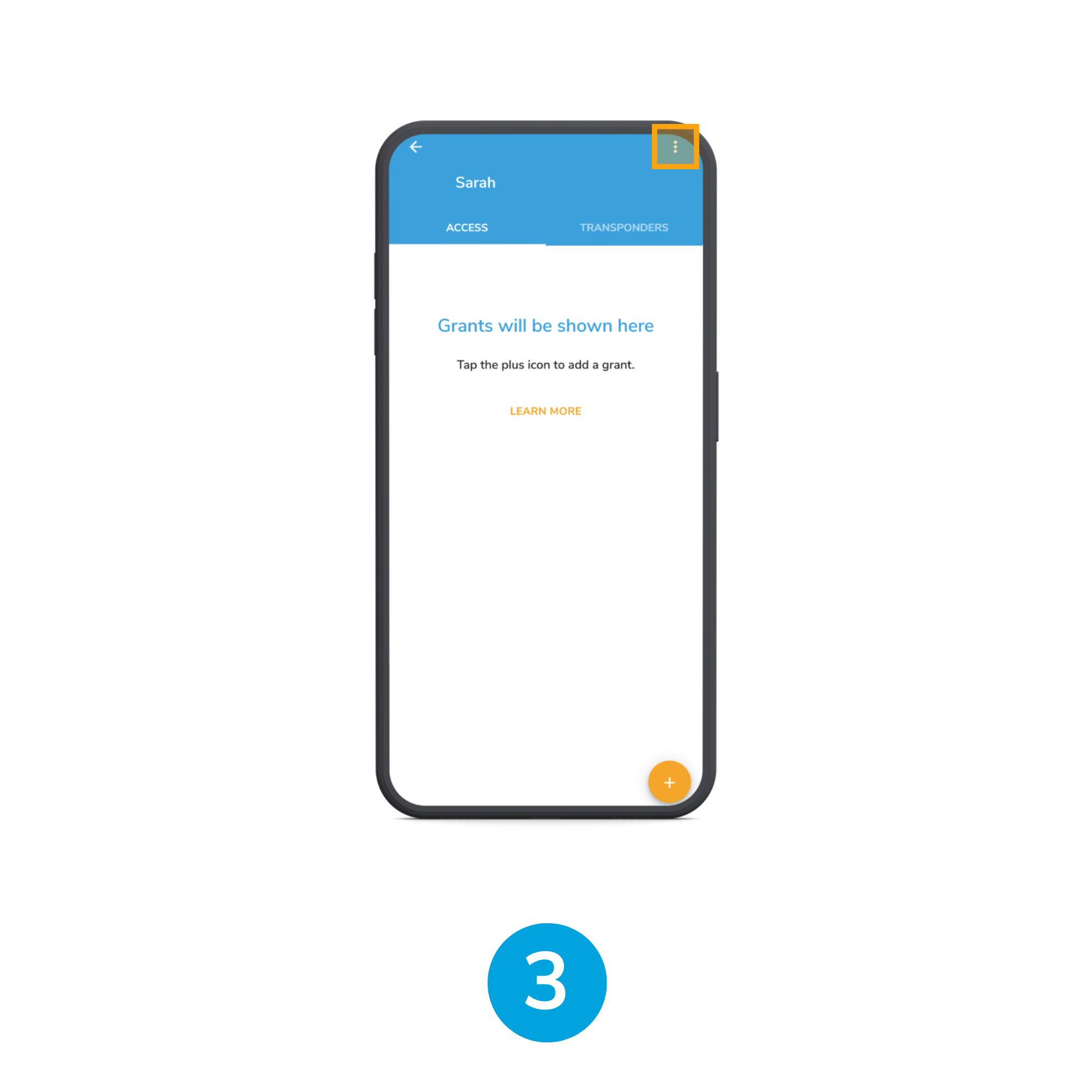
- Open the Person Details page.
- Select the ellipsis (⋯) in the top right corner.
- Tap Add email.
- Enter the email address and tap Save.
The person is now ready to use the Tapkey app.
Assign the appropriate grants to define which locks can be accessed.
How to grant access to a new or existing contact.
Add NFC Transponders
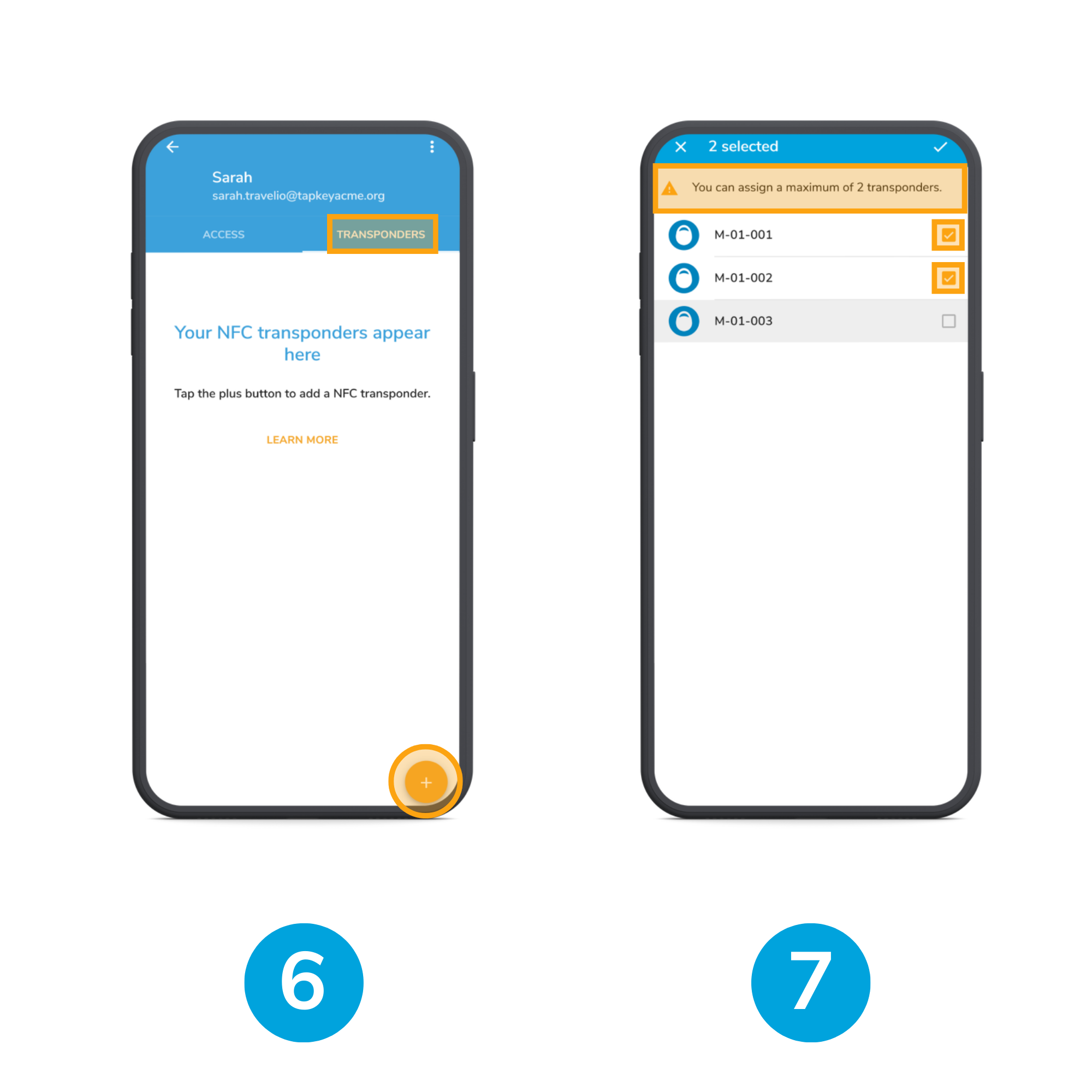
In the Person Details page, open the Transponders tab.
Here you will see a list of all NFC transponders currently assigned to this person.
- Open the Person Details page.
- Select the Transponders tab.
- Click Add (+).
- Select up to two transponders from the list (maximum 2)
- Confirm your selection.
Only transponders that are not already assigned to another person are displayed.
Transponders can not have existing grants. Remove any direct grants from the transponder before assigning it to a person. For more details, refer to the related Help Center article.
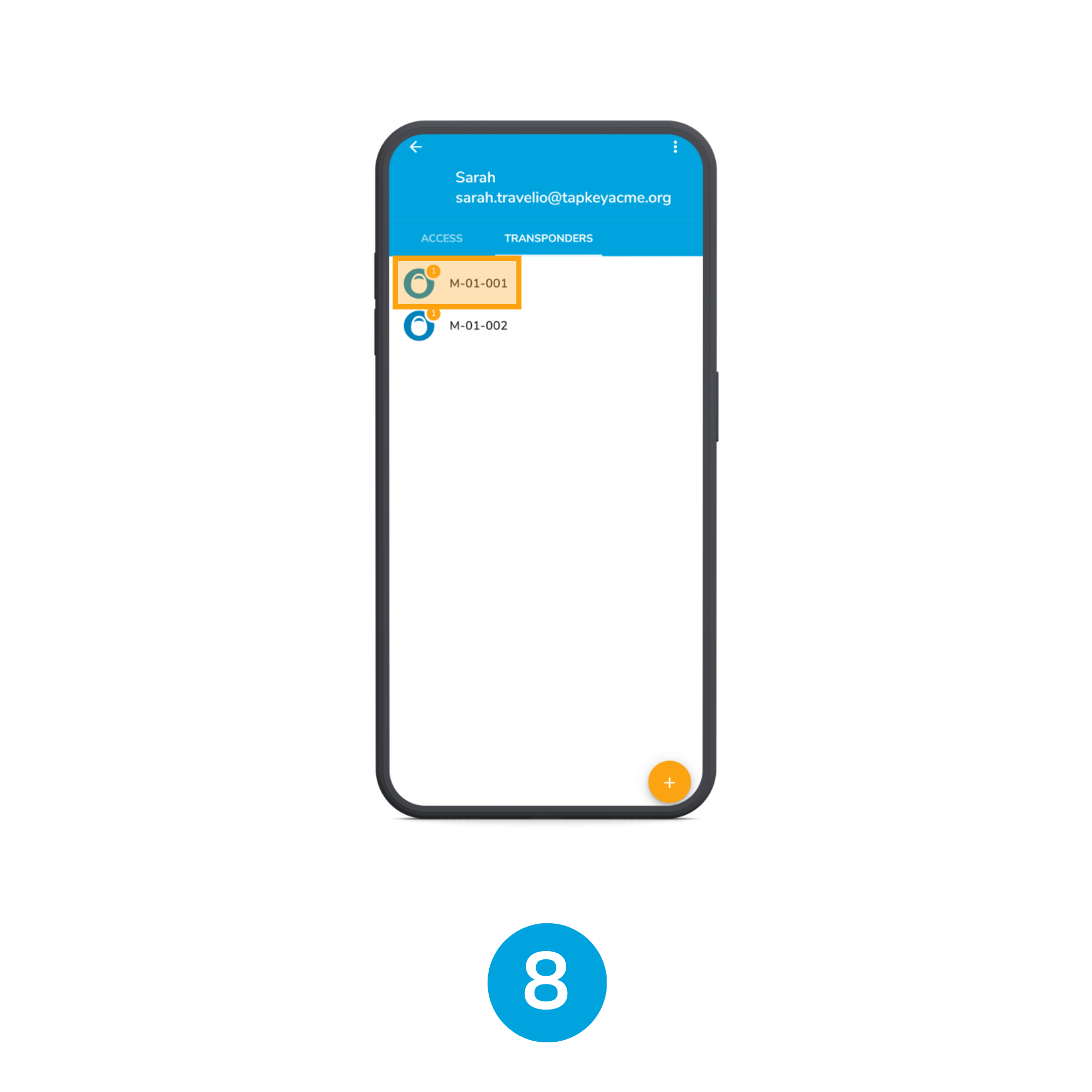
The selected transponders are now assigned to the person.
Important:
A maximum of two transponders can be assigned to one person.
Each transponder supports up to 12 grants. If more than 12 grants are assigned to a person, not all grants can be transmitted to the transponder.
After confirming the selection, the transponders must be synchronised to receive the updated grants.
After synchronisation, the transponders are ready for use.
Any changes to the person’s access rights require a new synchronisation of the assigned NFC transponders.
Note:
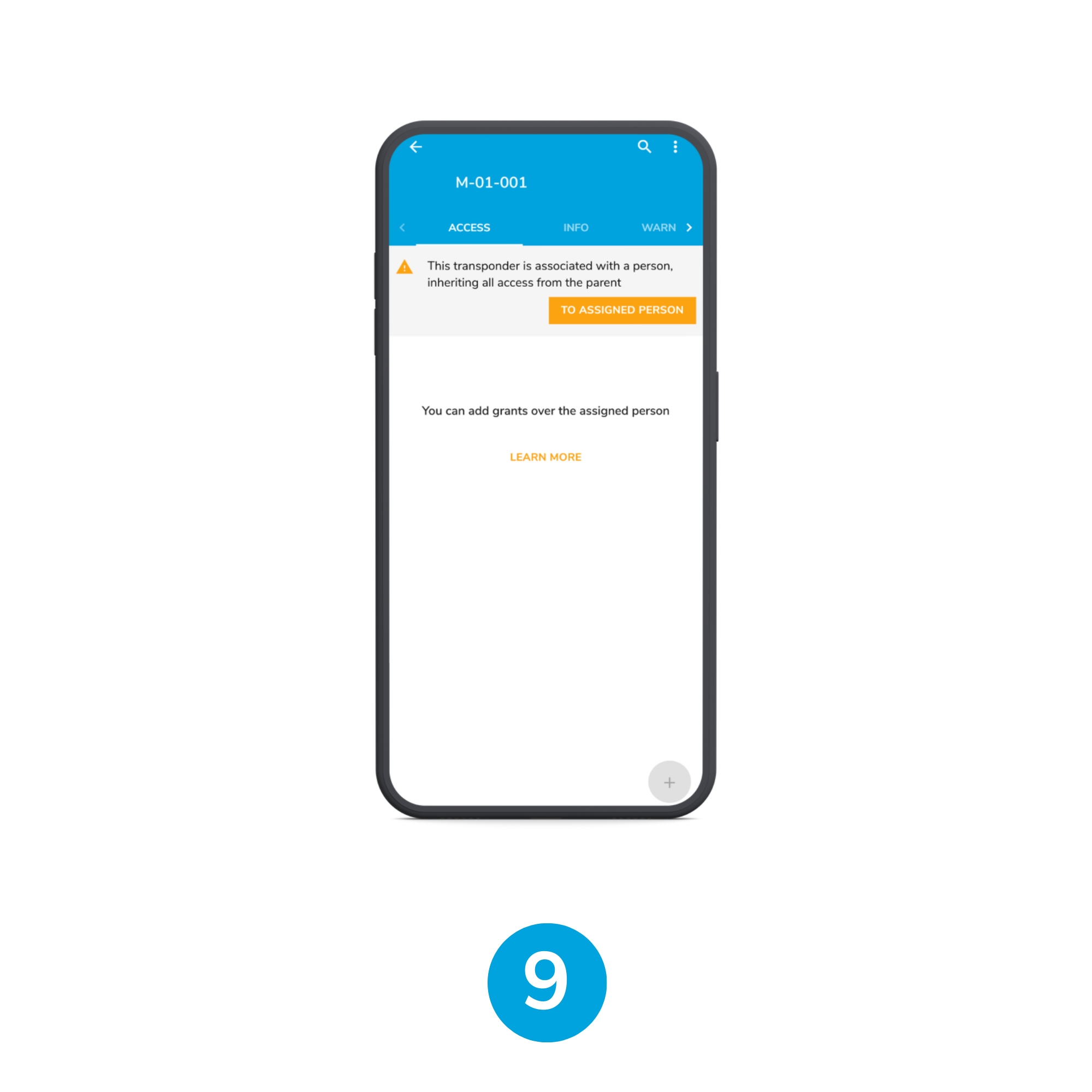
If a transponder is assigned to a person, access cannot be managed directly on the transponder. All access changes must be made on the Person level.
Remove Transponders from Person
You can remove NFC transponders from a person at any time.
- Open the Person Details page.
- Tap the ellipsis (⋯) in the top right corner.
- Select Remove transponders.
- Choose the transponders you want to remove.
- Confirm your selection.
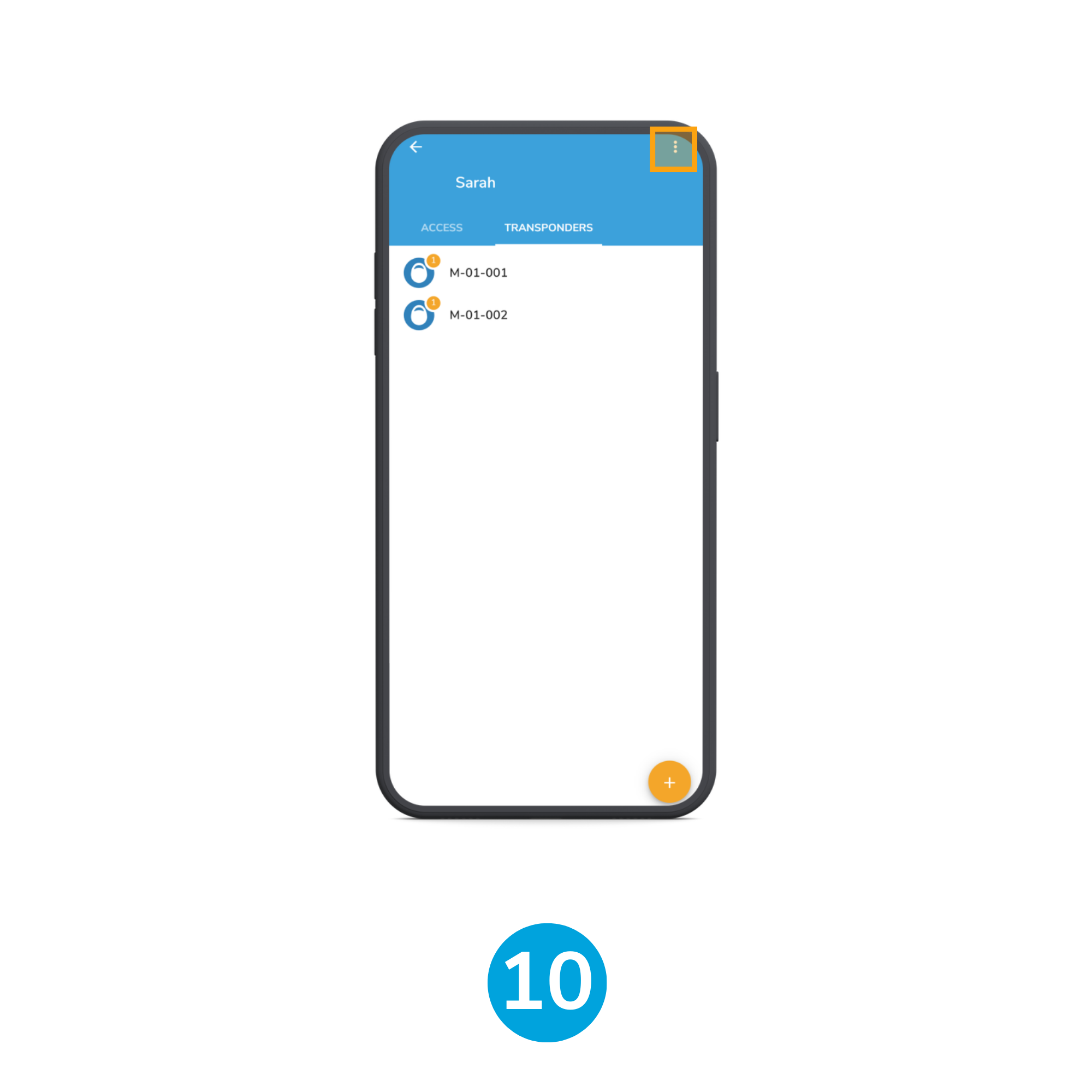
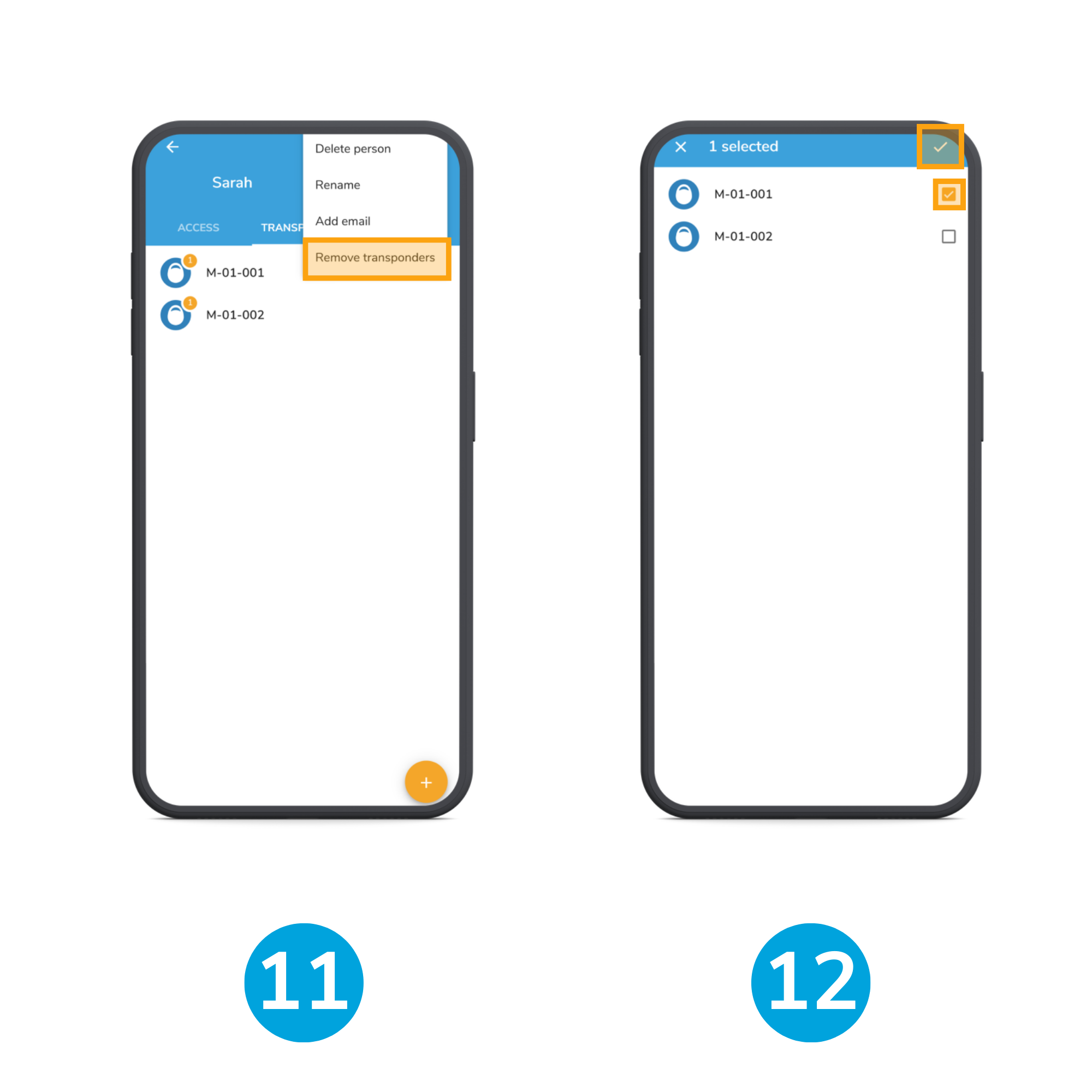
Note: After removal, the affected transponders must be synchronised to ensure they no longer have access to the locks.
Was this article helpful?
That’s Great!
Thank you for your feedback
Sorry! We couldn't be helpful
Thank you for your feedback
Feedback sent
We appreciate your effort and will try to fix the article