How to replace a broken lock.
If a lock is broken for any reason, you can replace it in just a few steps—without losing the access permissions on it.
Important:
Replace Locks: In order to be able to replace a lock, it is required that the replacing lock covers some minimum requirements:
- Firmware version of the replacing lock should be equal or newer than the firmware version of the replaced lock. Make sure that all grants on the replacing lock are revoked in advance.
- When a new lock is bound, default grants are created automatically and must be removed as well.
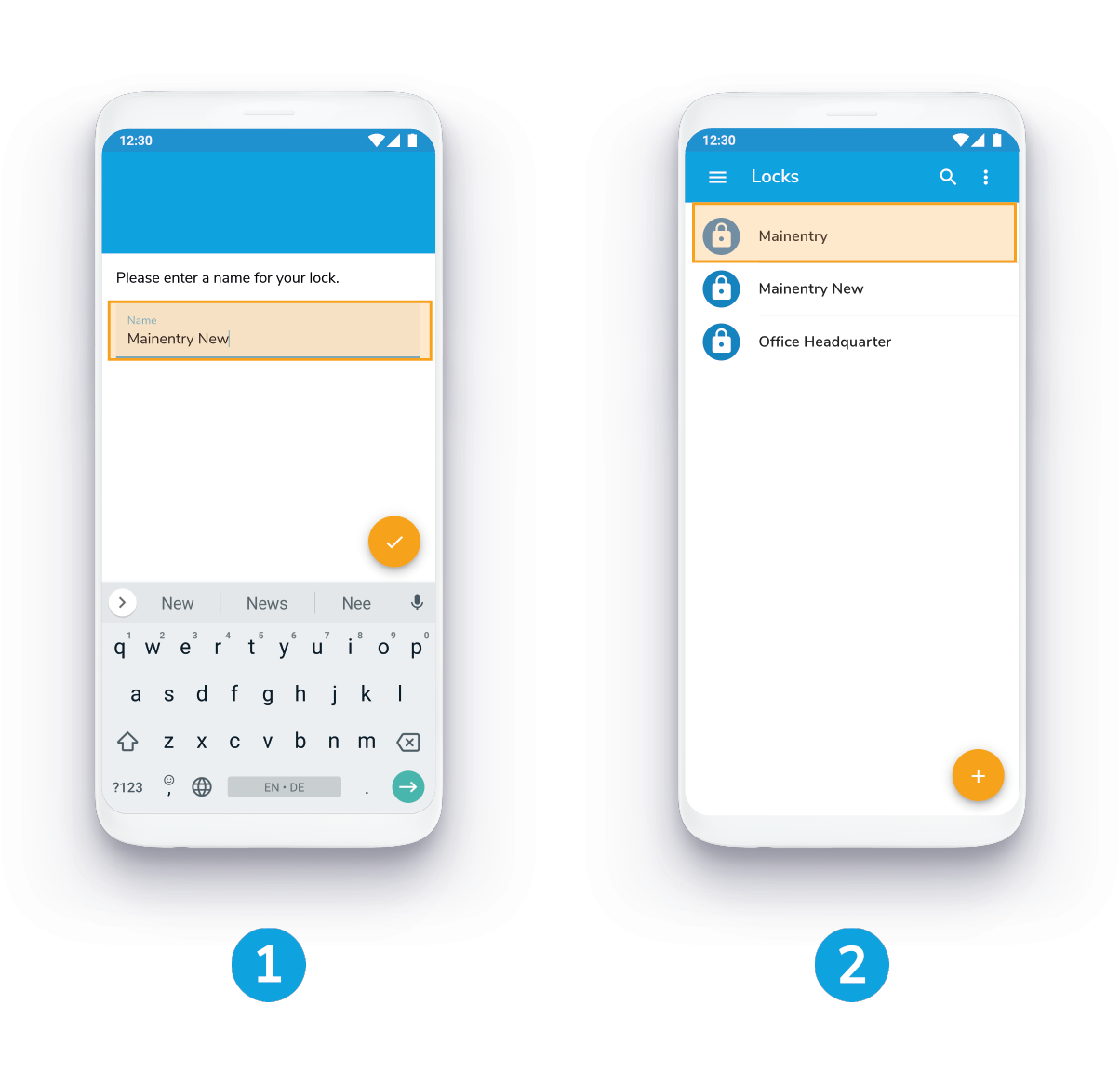
1. Register your new lock and name it
example: Mainentry New
2. Choose the old lock, that you want to replace
example: Mainentry
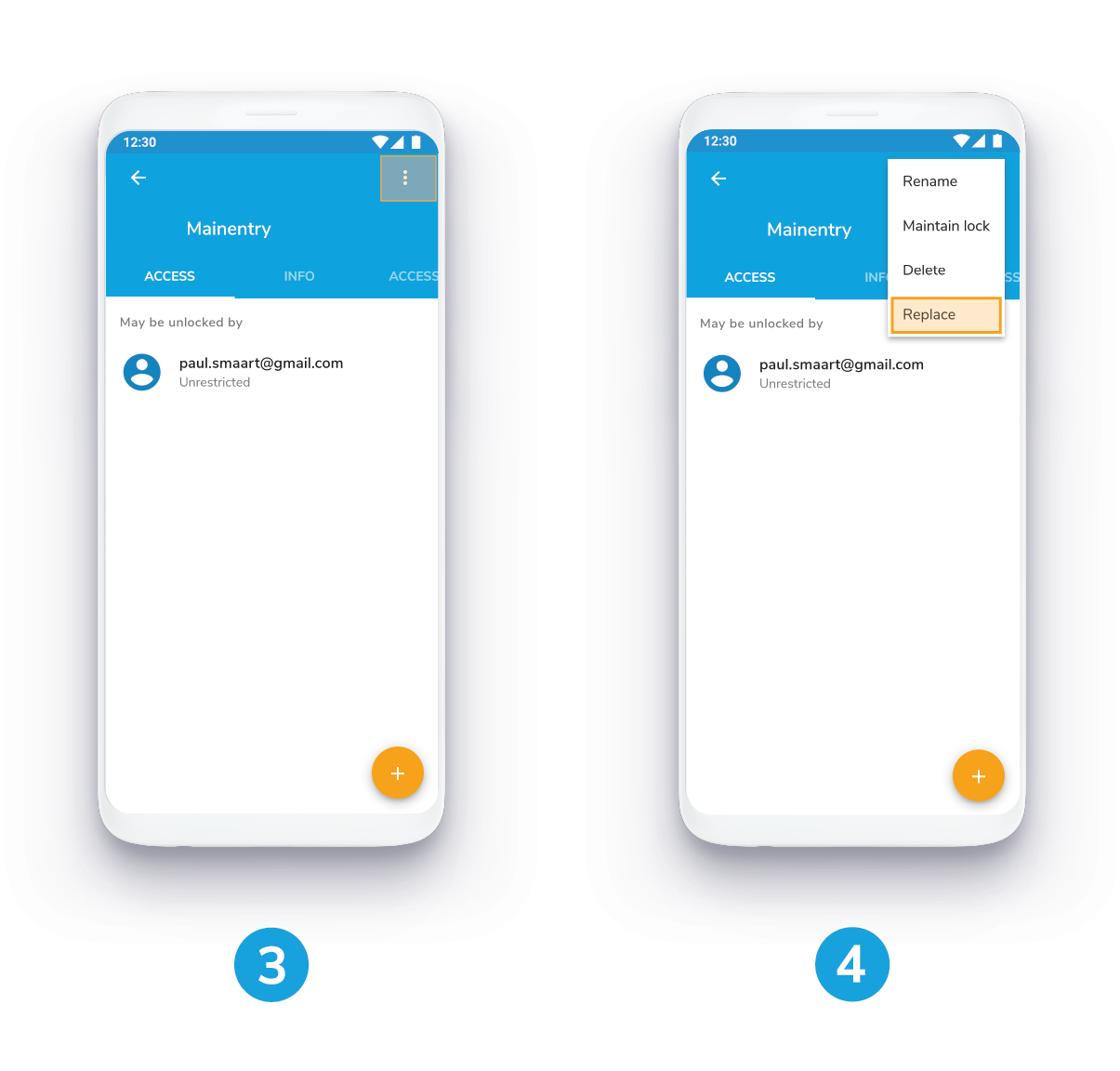
3. Press the button More
in the right corner
4. Press the button Replace
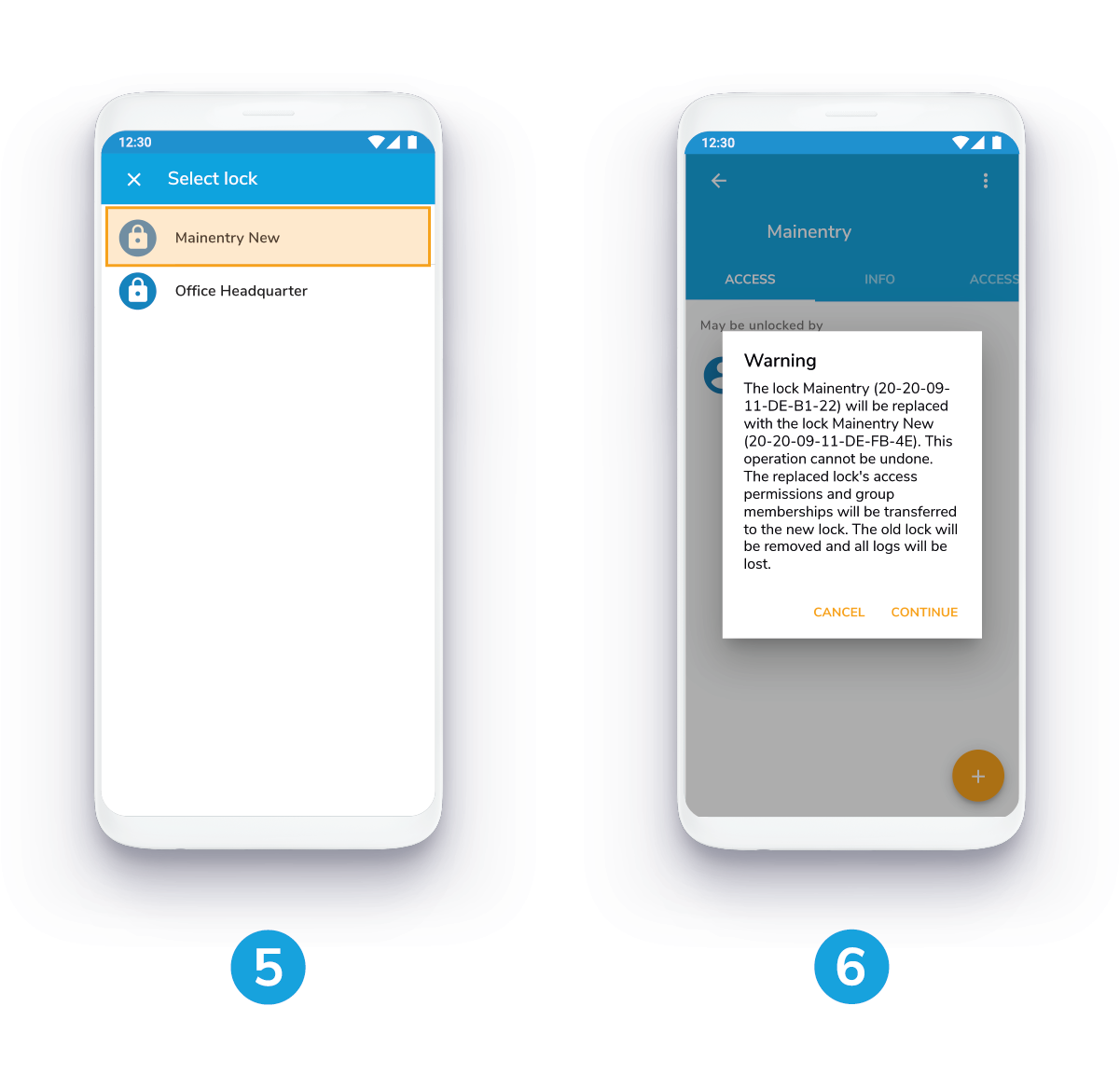
5. Choose the newly registered lock
example: Mainentry New
6. Click Continue
Note that this operation cannot be undone. The access log of the old lock will be deleted.
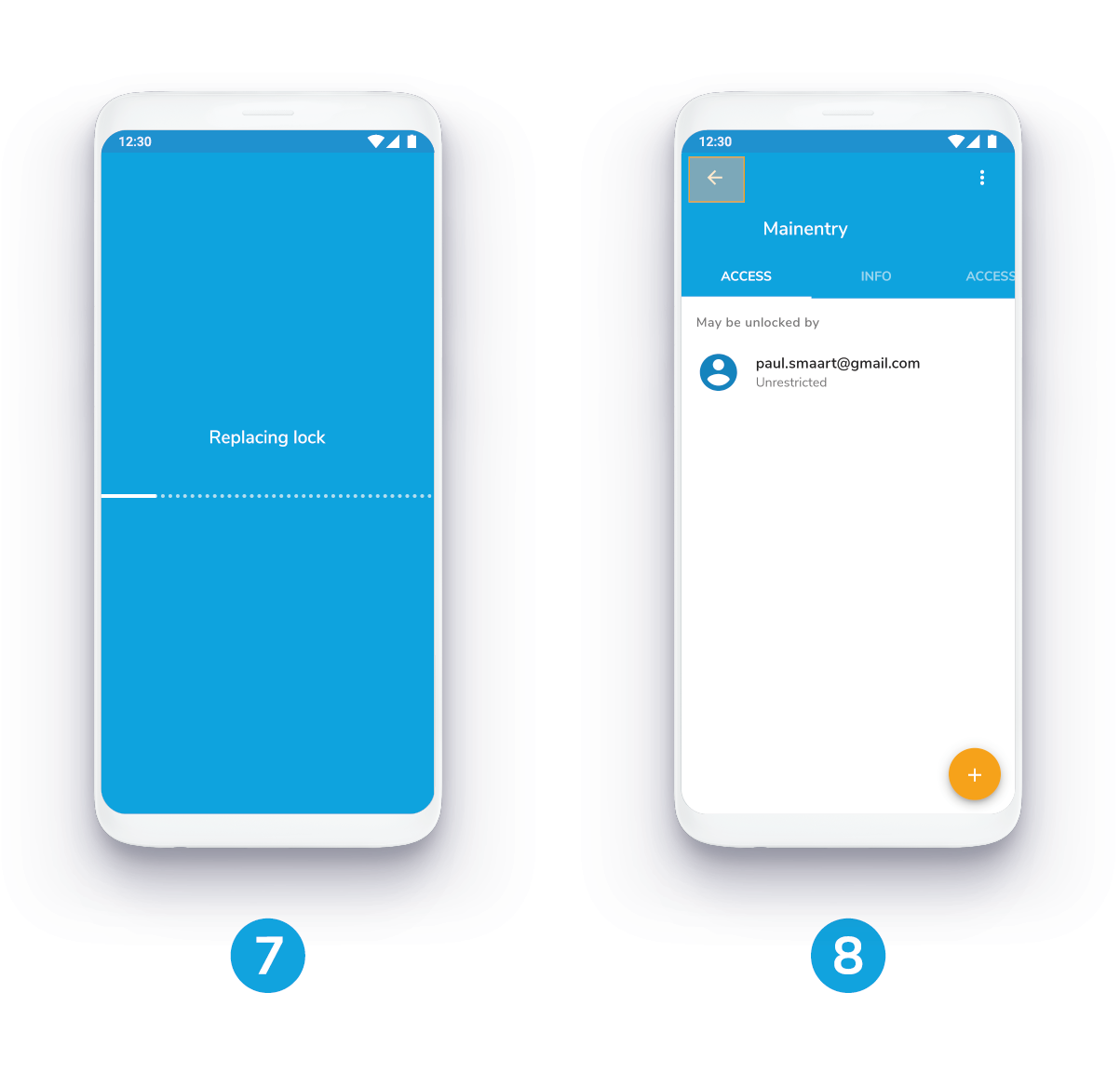
7. Wait till the lock is replaced
8. The permissions of the old lock have been adopted now
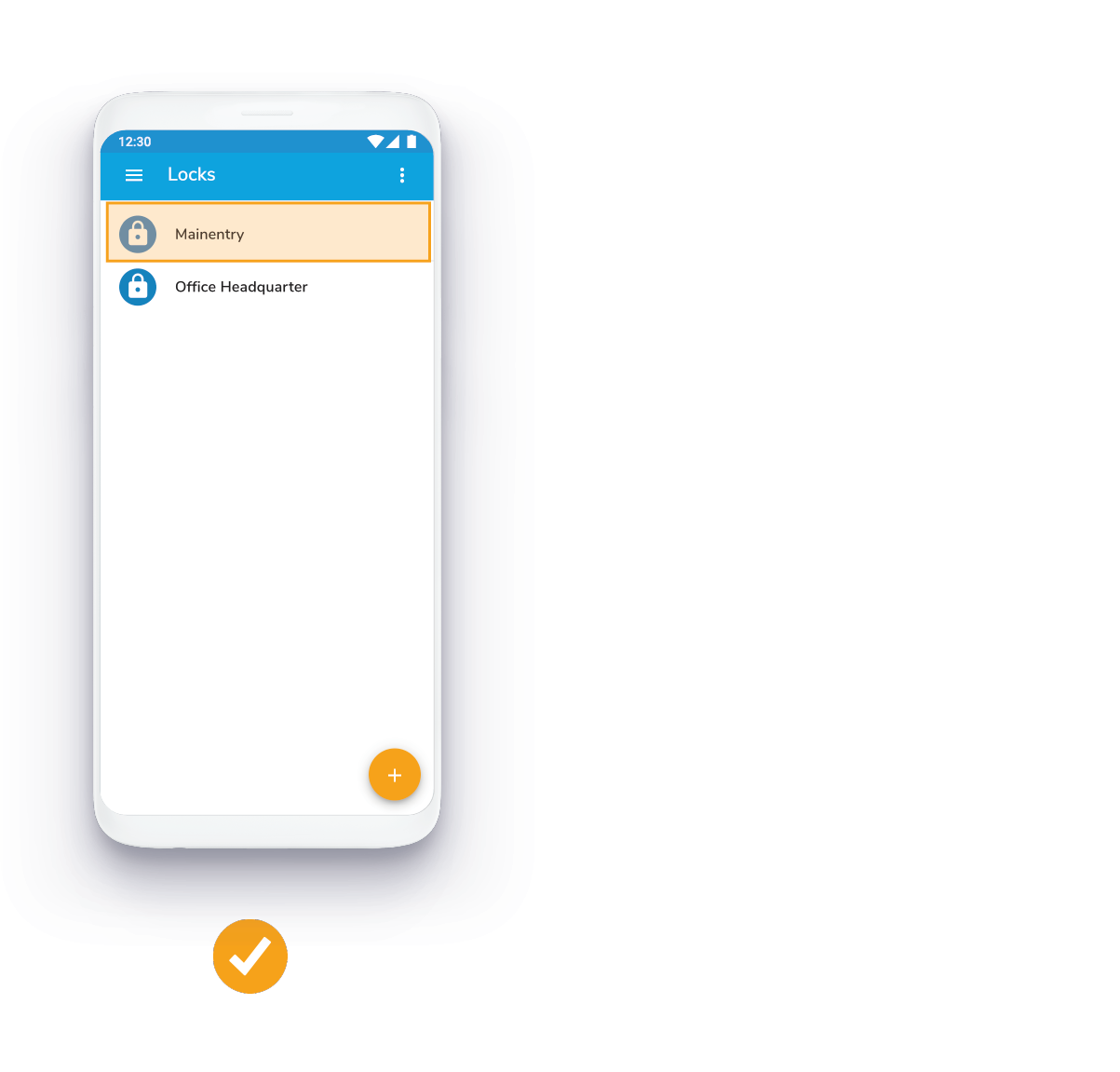
✔ In the lock overview the original lock name is shown
example: Mainentry
Was this article helpful?
That’s Great!
Thank you for your feedback
Sorry! We couldn't be helpful
Thank you for your feedback
Feedback sent
We appreciate your effort and will try to fix the article